
Short answer: connect your AI assistant to Youth4work with the address https://mcp.youth4work.com/mcp, sign in with your employer account (or create one on the same page), and ask in plain English. Your assistant can search talent by skill and city, rank candidates for a job with the reasons they match, open their profiles, post a job, WorkMail it to the best matches and start a yAccess purchase. It never pays for you: it gives you a pay link. Every example below was run on a Youth4work test company on 12 October 2026.
What the Youth4work connector does for employers
The connector is a Model Context Protocol (MCP) server that AI apps such as Claude can use. When you sign in with an employer account, your assistant gets 46 tools: your company page, jobs, applicants, candidate search, WorkMail, custom assessments, yAccess plans and Youth4work’s public search. It acts as you, inside the same rules as the website:
- Actions that reach other people (posting a job, sending WorkMail, revealing a candidate’s contact details, inviting people to a test) are marked, so your assistant asks you first.
- Candidate search shows public profiles only, without contact details. Revealing a candidate’s e-mail and mobile is a separate, logged action, limited to 50 different candidates a day.
- Daily limits apply, for example 10 job posts and 100 WorkMail recipients a day, and every action is logged.
See the Youth4work AI connector docs for every tool and limit.
Step 1: add the connector
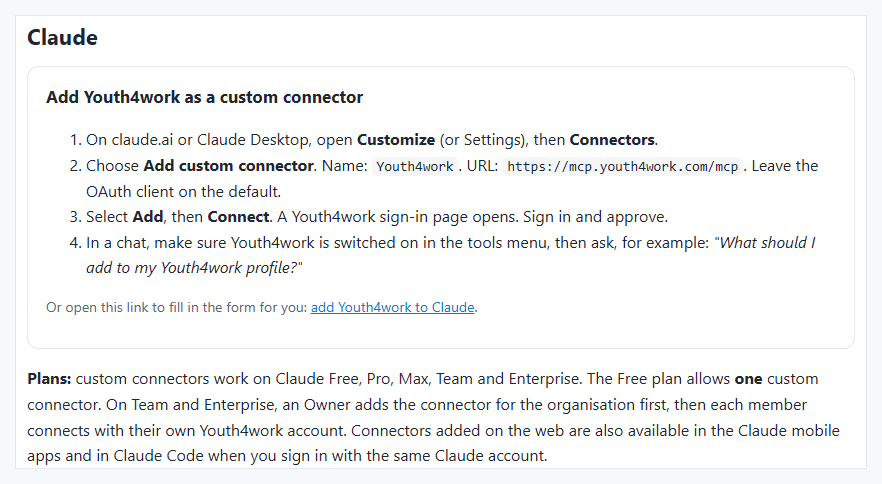
- Claude (claude.ai or Claude Desktop): open Customize, then Connectors, choose Add and Add custom connector, name it
Youth4work, pastehttps://mcp.youth4work.com/mcp, then Add and Connect. At the time of writing, Anthropic’s guide says this works on Free (one custom connector), Pro, Max, Team and Enterprise; on Team and Enterprise an Owner adds the connector for the organisation first. - ChatGPT: at the time of writing, OpenAI’s developer mode page says custom MCP apps are available to Business, Enterprise and Edu workspaces on the web, with developer mode turned on by a workspace admin. Create an app with the URL above and OAuth sign-in.
- Claude Code:
claude mcp add --transport http youth4work https://mcp.youth4work.com/mcp, then/mcpto sign in. Cursor, VS Code and others: add a remote (HTTP) MCP server with the same URL.
Step 2: sign in or create an employer account
Connecting opens Youth4work’s sign-in page. Check the app name and where access will go, then sign in with your username, e-mail or mobile and password, or with Google.
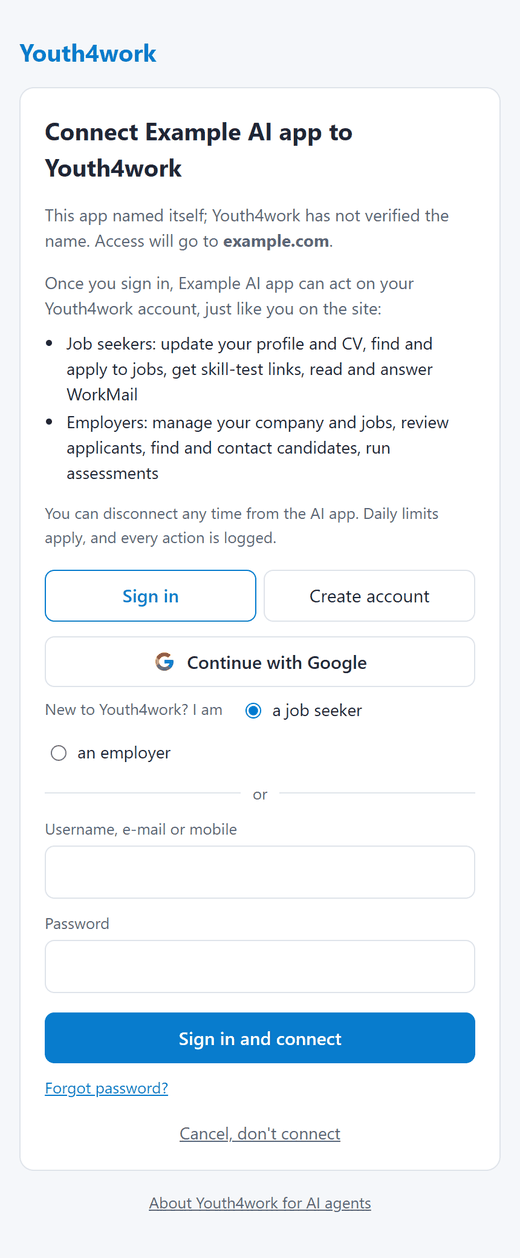
No employer account yet? Open Create account and choose I’m an employer. The form asks for your full name, e-mail, city, company name, your designation and a password; mobile and company website are optional.

Step 3: what to ask (live examples)
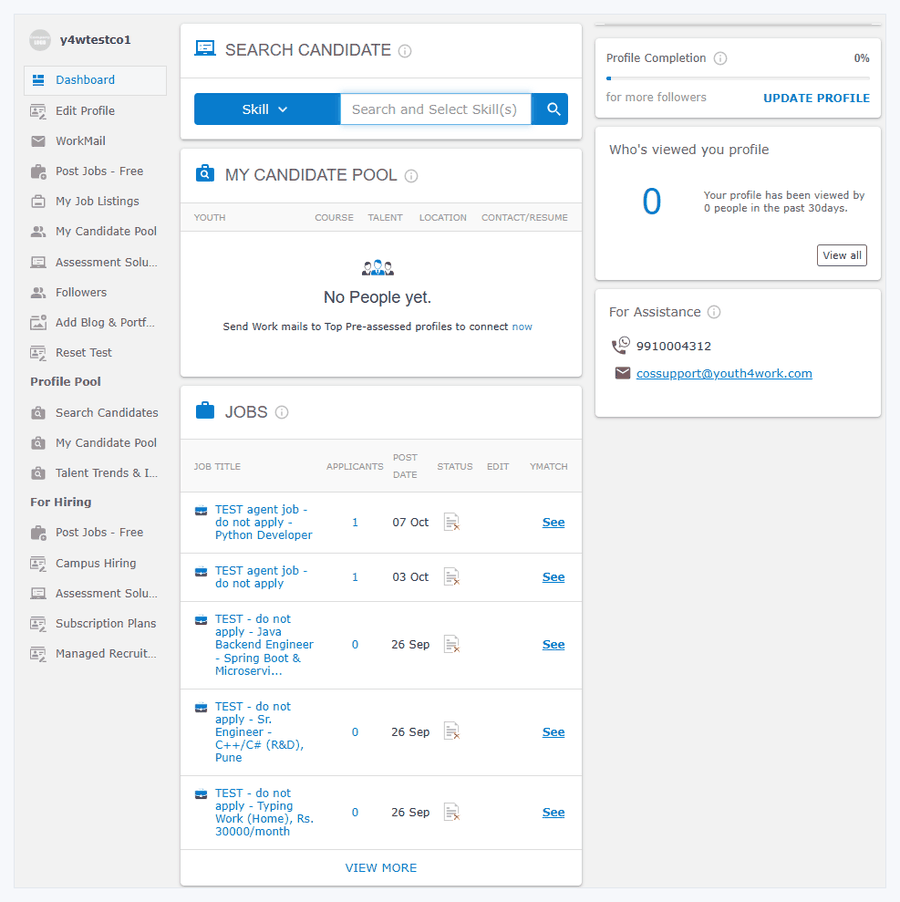
These are real tool results from our sandbox company y4wtestco1 on 12 October 2026, shortened. Sandbox companies never mail real members. Candidates are shown by first name only here; your assistant sees the public profile card.
1. “What should I set up first?”
LIVE EXAMPLE · tool: get_my_next_steps
- Complete the company profile (6 things missing): logo, About text, industry, office address, “why work for us”, LinkedIn and other links.
- Post a job: title, description, skills, city, experience and salary, then a draft to confirm.
- Contact matching candidates: rank them for the job, then WorkMail the ones you approve.
2. “Find Python talent in Pune”
LIVE EXAMPLE · tool: search_talent (skill: Python, city: Pune)
- Shrushti, Pune, MCA: talent score 2.67
- Prea, Pune, MCA: 1.70
- Kapil, Pune, B.E./B.Tech: 1.66
- … 20 per page, more pages available, plus a link to the Python in Pune rank board.
Results are public profiles ranked by their assessed talent score, the same score behind Youth4work’s talent rank boards. No contact details are included.
3. “Who are the best candidates for Python and MySQL?”
LIVE EXAMPLE · tool: find_matching_candidates
- Sreenath, Manjeri: 2 of 2 skills, both tested (MySQL 2.27, Python 1.96), match score 4.24.
- Amit, Keonjhar, graduating 2026: 2 of 2 skills, both tested (Python 2.08, MySQL 2.07), match score 4.15.
Each result also lists top skills, education, experience years, whether there is a CV, and whether the person already applied to one of your jobs.
To read a full profile, ask for it (get_candidate). Contact details come only through reveal_candidate_contact, which your assistant must ask you about first.
4. “Post a job for a Python developer in Pune”
Your assistant collects the details, shows you the full draft and posts only after you say yes. The job is live immediately. Right after posting, Youth4work WorkMails it to up to 50 of the best-matching job seekers (public profiles that accept e-mail and were active in the last 3 years), unless you choose “preview” or “off”.
LIVE EXAMPLE · tool: post_job with match_mail “preview” (nothing sent)
- Posted: job 248132, “TEST – do not apply – Python Developer”, Pune, full time, 0 to 2 years, skills Python and MySQL.
- Would WorkMail 50 matching job seekers, for example Rahul, Mahesh and Shekhar in Pune. Why each: “skills: MySql, Python (2 of 2)”, “lives in Pune”, “experience fits”, “tested on Youth4work”.
We closed the test job straight away with close_job.
Later, mail_matching_talent sends the job to more matches. It runs as a dry run by default and lists who would get it; it sends only when you approve. It skips people who opted out of e-mail, already applied, or were mailed about a job by your company in the last 14 days.
5. “Which yAccess plans are there? Buy the 30-day one”
LIVE EXAMPLE · tools: list_plans, then create_checkout
- 30 Days yAccess: 2,000 WorkMails, Rs 118 including 18% GST.
- 90 Days yAccess: 6,000 WorkMails, Rs 259.60.
- 180 Days yAccess: 25,000 WorkMails, Rs 495.60.
- Checkout created for the 30-day plan: Rs 118, status “awaiting payment”, with a pay link on secure.youth4work.com. (We cancelled it with
cancel_checkout.)
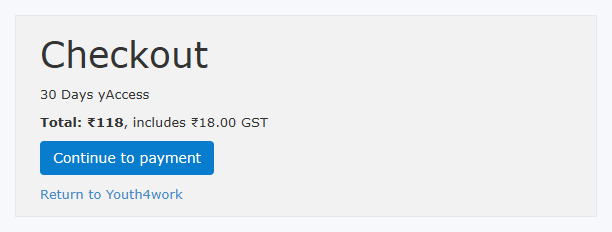
yAccess covers WorkMail to candidates, full candidate profiles and contact details, and job postings for the plan period. You pay on Youth4work’s Razorpay page (UPI, cards or net banking), the plan activates by itself after payment, and the link works for 2 days. Your assistant can check the status with get_checkout.
More you can ask
- “Show the applicants for my Python job and shortlist the ones with tested skills” (
list_applicants,shortlist_applicant,rate_applicant). - “Create a 20-question aptitude test and invite my shortlisted applicants” (
create_assessment,invite_to_assessment). - “Fill in our company About text and add our Pune office” (
update_company,save_company_location). - “Reply to the WorkMail from the last candidate” (
list_workmail,send_workmail).
Our data post on the most in-demand skills on Youth4work in 2026 shows which skills job seekers are building and testing, and our Prep guide covers the exam side. Looking for a job yourself? See find jobs on Youth4work with your AI assistant.
FAQ
Can my AI assistant pay for a plan?
No. It can only create a checkout and give you the pay link. You pay on Youth4work’s own page.
Will it contact candidates without asking me?
Posting jobs, WorkMail and revealing contact details are marked as actions, so Claude and ChatGPT ask you before running them. The bulk WorkMail tool also runs as a dry run unless you approve sending.
Can I see candidates’ phone numbers?
Only through the reveal tool, for a real opening, as on the site. It is logged and limited to 50 different candidates a day.
Which candidates show up in search?
Job seekers with public profiles. Private and deactivated profiles are left out.
Do I need a separate account for the connector?
No. Use your normal Youth4work employer account, or create one on the sign-in page. Jobs, applicants and tests your assistant works with are the same ones you see in your Youth4work dashboard.