2. Invite Candidates to take tests:
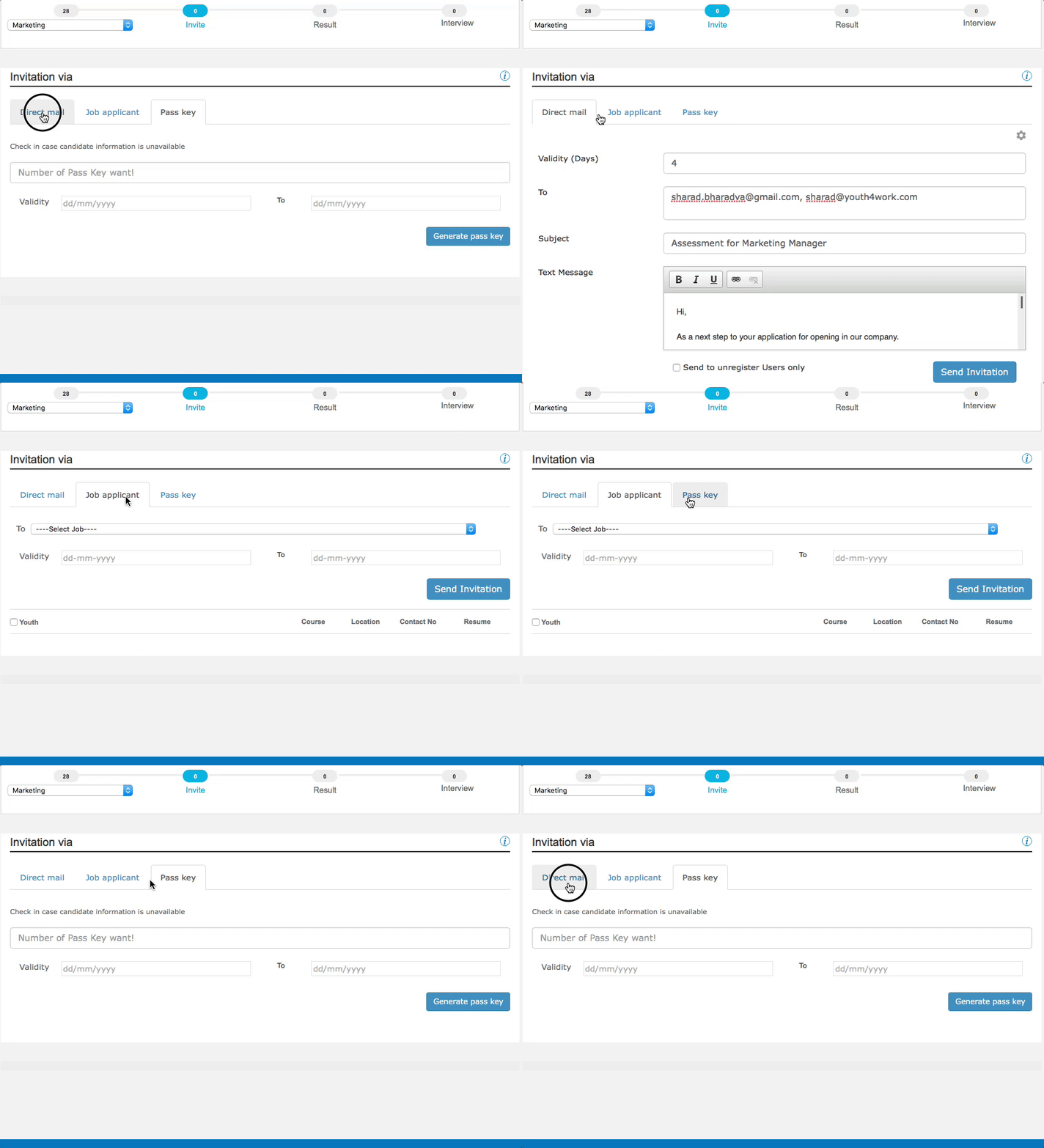
There are three ways by which you can invite people to attempt the ytest.
- Direct Mail — Emails to potential candidates
- Job Applicants — Assessing the Job Applicants
- Pass Key — Share test link with different pass keys (Single User or Master Passkey)
2.1 — Direct Mail
This is used when you have the email ids of candidates supposed to take the assessment.
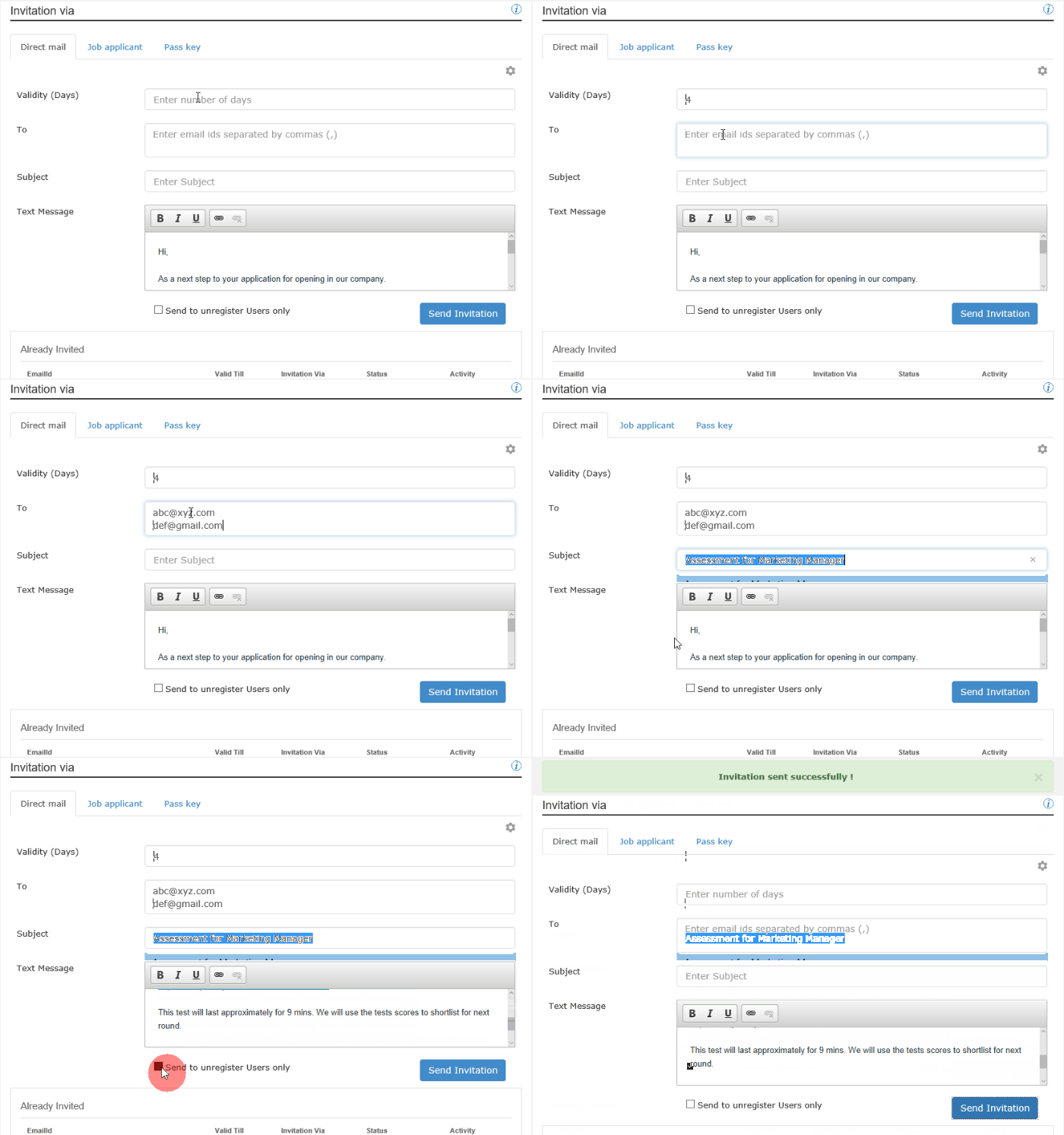
- Validity —Enter the number of days for how long the assessment will be valid online. Candidates can take the assessment within the specified number of days, after which the link will expire for them.
- (Send Email) To — Enter the email ids of the candidates, either separated by comma or one below other (using enter). You can also copy the list of email ids from an Excel sheet or a .txt file directly
- Subject — Write a specific subject line relevant to the assessment
- Text Message — There is already a default message with the link to the assessment, which can be edited with any specific points or guideline for the assessment.
- Send to unregistered users — Use this option if you want to invite only those candidates who have not taken any assessment before (through you or any other company)
- When you hit Send Invitation button, emails bearing your company’s name as Sender Name goes through Youth4work servers and are received by candidates in their mailboxes.
2.2 — Job Applicants
This method can be used when you have posted a job on Youth4work and want to further assess the applicants.
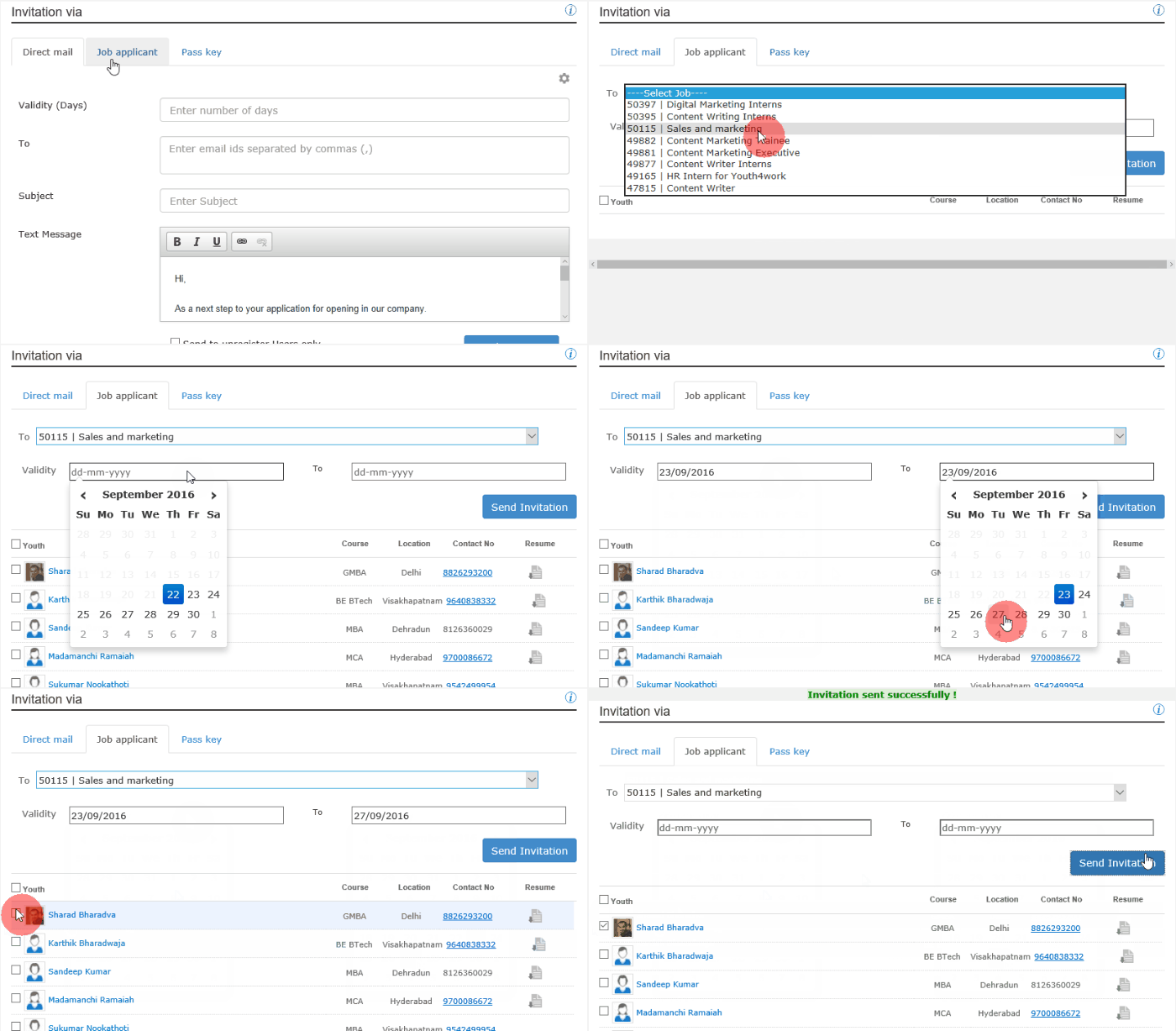
- Select the Job from the list of posted jobs, for which you want to assess the applicants. The applicant’s list will appear below the section.
- Choose the Validity dates — the assessment will be valid only between those dates.
- Select the applicants whom you want to invite for the assessment. You may select one or all.
- Click on ‘Send Invitation’ button. An auto-generated mail goes from Youth4work in your company’s name to the selected applicants along with the assessment link.
2.3 — Pass Keys
- This method is recommended when the company wants to conduct assessments for any Walk-in drives or Campus drives or for their employees also.
- The method generates a specified number of unique alphanumeric codes that can be used by candidates to unlock any assessment.
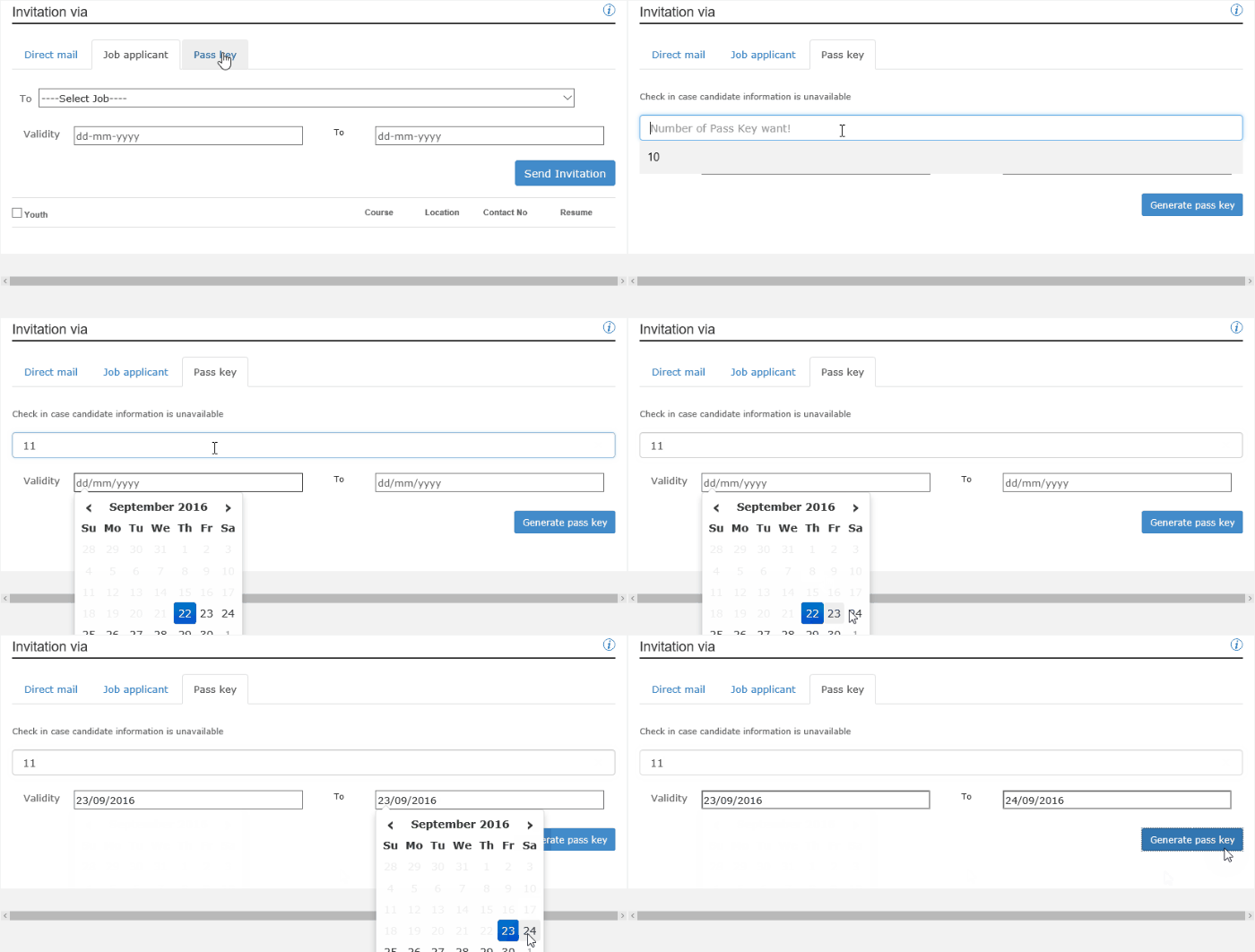
- Choose the Number of Pass Keys you require and also the Validity Dates of the pass keys. Candidates cannot use the passkey before the start date and beyond the end date.
- The passkeys, along with the link to the custom test gets downloaded in an Excel sheet on your system.
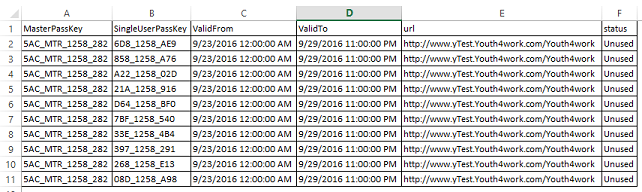
Single User Pass Key allows candidates to take one test with their personal passkey allotted for single use only with validation.
Master Pass Key allows every candidate to take one test with a common Passkey which could be used multiple times with no validation.
Whichever method you use for the invitation, you will see the increased count of invites at the top. This is a total of invites through Direct Mails, Job Applicants and Pass Keys.

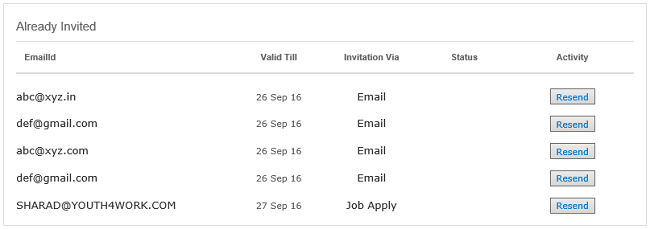
You can see the list of all invited candidates as below, and you can resend the invite also: